Process Flow Interface
|
Reference: |
The Process Flow interface consists of:
- The Process Flow tab and workspace, where you build your process flows.
- The active Flow tab, which enables you to add objects to your process flow.
When you create a new flow and click the Process Flow tab in the workspace, a Start object appears in the workspace to anchor the flow, as shown in the following image.
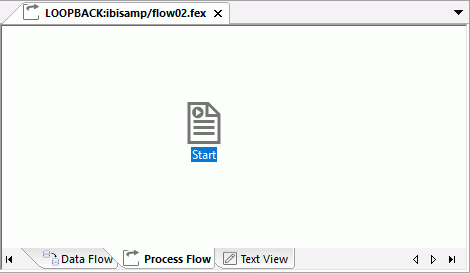
You can add a variety of other objects from the Insert group. These may include data flows or other process flows, as single components or as a group, procedures, and email messages, in whatever combination and order suits your needs.
The remainder of this chapter describes, in detail, all the options that are available to you as you design your process flows.
For more information on using the Procedures button, see Navigation Pane: Procedures Button.
Reference: Process Flow Objects in the Workspace
Process flow objects appear as follows in the workspace:
|
Object |
Function |
|---|---|
|
|
Start Indicates the start of the process flow. Start is always the first object in the process flow. The Start object contains the scheduler attributes for the process flow. You can schedule a flow to run once, on a recurring basis, or on a specified days of the week or month, on an interval you define. |
|
|
Data Flow Indicates an embedded data flow that contains data source and data target objects, along with business rules that govern what is extracted and moved from source to target objects. To open the data flow, right-click the flow and select Open. Note: This icon appears when the data flow is embedded in a process flow. |
|
|
Flow Indicates that a complete data flow or another process flow is being executed from the current process flow. You can nest one flow within another. To open the flow, right-click the flow and select Open. Note: This icon appears when a previously saved data flow or process flow is executed from the current process flow. |
|
|
Parallel Group Indicates that a group of flows or procedures will be executed simultaneously. The group object is generally followed by a Wait object. |
|
|
Wait Indicates that processing of the next object in the flow will wait until execution of all processes in the parallel group have been completed. A Wait object generally follows a Parallel Group object, but is not required. |
|
|
Indicates an email message is sent at the designated points in the flow. Email can be sent to multiple email addresses at any point in a process flow. Remember that the server must be configured for sending email. |
|
|
Stored Procedure Indicates a saved procedure (other than a data or process flow). The stored procedure can be any FOCUS program that is executed during a process flow. |
|
|
Connector Represented as arrows, connector objects specify the logic that governs what is executed next in a process flow. In some cases, the logic is unconditional. In others, the logic is conditional (set either by defaults or by conditions you define). The color of the arrows indicates these relationships:
|
|
|
Set variables Set default values for variables used by other objects in the flow. |




| WebFOCUS | |
|
Feedback |